

All Master and Secondary devices can have their firmware upgraded.
Firmware is the software that each device has embedded and from time to time there may be updated to fix a bug or introduce new features that coincide with an APP update as well.
NOTE: If your PIXIE Smarthome is operating without any issues there is no need to update the firmware on any devices.
Before updating any firmware be sure your PIXIE or PIXIE PLUS app is the very latest version by updating the App first!
Bulk Firmware Updates #
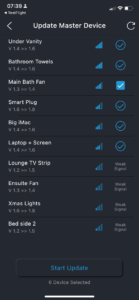
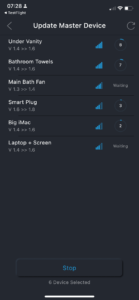
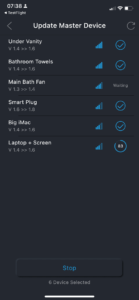
As of March 2023 ANDROID PIXIE PLUS users can now use bulk Firmware updates! ( iOS to follow in due course … soon …) – This is a great time saving innovation – So how does this work?
- 1. The PIXIE PLUS App gives you the option for a BULK firmware update when you navigate to the Master Device firmware update
- 2. Then depending on where you are in the home, it will determine which devices are in reach to be able to successfully complete a firmware update – Signal strength of 3 or greater is needed.
- 3. Then it will *simultaneously* update devices that use the same firmware stack and hold the others, and then group update those
- 4. You may have to move if some devices re determined to not be in range.
Single Firmware Updates #
Its still possible to perform a single update as needed.
Rules for Updating Firmware
- 1. You must be physically within 1 metre of the device being upgraded for the entire update timeframe. The PIXIE App will notify you once the update is done.
- 2. Only 1 device can be updated at a time from a single mobile device. If you are using the PIXIE PLUS APP and have multiple mobile devices with access to the PIXIE home, then each device can update the firmware of a device at the same time as other devices. In this way, if you had 4 iPhone connected – as an example – you can update 4 devices simultaneously.
- 3. It takes about 2-3 minutes per device to update – so so if you have a lot of devices – adding additional devices into the home to perform the simultaneous update is recommended to save time.
How to Update #
You can update from either the PIXIE APP or the PIXIE PLUS APP
- – From the home screen select the COG icon in the top right hand corner
- – PIXIE PLUS –> Advanced –> Update Master Device / Secondary Device Firmware
- — The App will scan the PIXIE devices in your home and compare the current firmware version in each device with the actual current version
- — If your list in blank everything is up to date
- — When items appear in the list press the Update button next to each item and wait for the to update.