

Three AC brands. One wireless way to control them. #
PIXIE CLIMATIQ works with DAIKIN™, Mitsubishi Electric and Mitsubishi Heavy Industries (MHI) air conditioning. Each brand connects a little differently. This article explains what each one supports, what you need on site, and the one design decision that has to be made before the AC is ordered.
Who this is for. Electrical contractors, PIXIE Certified Installers and specifiers planning AC control on a residential or light commercial job. It is an overview of all three brands. For the full DAIKIN™ deep dive, including wiring detail, DIP switch settings and six deployment scenarios, see PIXIE CLIMATIQ and how PIXIE works with DAIKIN™ ducted air conditioning.
Decide who controls the zones before the AC is ordered. #
This is the single most important decision on a CLIMATIQ job, and it has to happen early. The AC contractor orders the wall panel, zone module and dampers at the design stage. If they order the manufacturer's advanced zoning panel and PIXIE is meant to do the zoning, you will not get full integration, and fixing it later means replacing hardware.
The rule for all three brands. When PIXIE handles zoning, the AC contractor installs the manufacturer's standard wall control panel only. No advanced zone control panel, no manufacturer zone control module, and 24V AC dampers only.
Confirm the brand and system type. #
DAIKIN™ ducted or VRV, Mitsubishi Electric split, ducted or ceiling, or MHI ducted or VRF. DAIKIN™ split systems are not supported.
Agree who owns zone control. #
PIXIE zoning (PIXIE Smart Zone Controller) or the manufacturer's zoning system. Put the answer in writing with the AC contractor before anything is ordered.
Specify the right wall panel. #
With PIXIE zoning, the standard manufacturer wall panel stays on the wall for local AC control. It works alongside PIXIE. The zoning version of that panel does not.
Plan the dampers and power. #
24V AC dampers only, never 240V. The Smart Zone Controller needs its own 24V AC supply. Allow one Smart Zone Controller per 8 zones.
How the three brands compare. #
Same outcome for the homeowner, three slightly different paths to get there.
| DAIKIN™ | Mitsubishi Electric | MHI | |
|---|---|---|---|
| Systems supported | Ducted and VRVNot split systems. Not Airbase™ or AirHub™. | Split, ducted and ceiling mount indoor units | Ducted and VRF |
| AC control device | PIXIE AC Controller for DAIKIN™PC214AC/DK/BTAM | Mitsubishi Electric Wi-Fi ControllerMAC-588IF-E, one per indoor unit | PIXIE RS485 Bridge + Intesys kitPC2185/R/BTAM/KIT/MHI1, one per indoor unit |
| Connects to the indoor unit | P1-P2 terminals, in parallel with the DAIKIN™ wall panel | ME Wi-Fi Controller fitted to each indoor unit | X-Y terminals via the Intesys module, in parallel with the MHI wall panel |
| How PIXIE talks to it | PIXIE Bluetooth mesh | Site Wi-Fi network via the PIXIE Gateway | PIXIE Bluetooth mesh |
| Apps | SAL PIXIE and PIXIE PLUS | PIXIE PLUS only | SAL PIXIE and PIXIE PLUS |
| PIXIE Gateway (SGW3BTAM) | Only for voice and out-of-home control | Always requiredSame IP subnet as the ME Wi-Fi Controllers, active internet on site | Only for voice and out-of-home control |
| Zoning | Yes, PIXIE Smart Zone Controller | Yes, PIXIE Smart Zone Controller | Yes, PIXIE Smart Zone Controller |
| Wall panel with PIXIE zoning | Standard DAIKIN™ wall panel only | Standard ME remote wall panel only | Standard MHI wall panel only |
| Key limit | Max 2 controllers on P1-P2 (wall panel + PIXIE) | Max 10-12 Wi-Fi modules per system | One MHI wall panel per indoor unit |
Install, scan, control. No control cabling through the house. #
Traditional AC control is wired. Every wall panel needs its own cable back to the indoor unit or zone module, the panel location is fixed at rough-in, and changing it later means opening walls. PIXIE CLIMATIQ is modular and wireless. The AC control device sits at the indoor unit, the Smart Zone Controller sits with the dampers, and everything else talks over the air.
Install #
Fit the PIXIE AC control device at the indoor unit and the Smart Zone Controller with the dampers. The two are not wired to each other.
Scan #
Open the PIXIE app and scan for the new AC device. On-board test buttons on the Smart Zone Controller let you check every damper from the ceiling space first.
Control #
Power, mode, temperature, fan speed and zones from the app, schedules and scenes. Voice and out-of-home control are added with the PIXIE Gateway.
| Traditional wired AC control | PIXIE CLIMATIQ | |
|---|---|---|
| Control cabling | A cable from every wall panel back to the indoor unit or zone module | Wireless between control points. Devices only connect at the indoor unit and dampers. |
| Where control lives | Fixed wall panel locations decided at rough-in | App, schedules and scenes, plus on-wall PIXIE control points where the client wants them |
| Changes later | New cable runs and patching | Add or move control points without re-cabling |
| Manufacturer wall panel | The only control point | Stays in place and works alongside PIXIE |
| Whole-home integration | Separate from lighting and the rest of the home | AC and zones in the same app and scenes as PIXIE lighting and control |
The manufacturer wall panel stays. PIXIE does not replace the standard DAIKIN™, Mitsubishi Electric or MHI wall panel. It connects alongside it, so the client keeps a familiar local control on the wall and gains smart control on top. The only panel to avoid is the manufacturer's zoning panel when PIXIE is doing the zoning.
DAIKIN™. Ducted and VRV, wired to P1-P2. #
The PIXIE AC Controller for DAIKIN™ (PAC) connects to the P1-P2 terminals on the indoor unit, in parallel with the standard DAIKIN™ wall panel. It talks to the rest of PIXIE over Bluetooth mesh, so no Wi-Fi or internet is needed for app control on site.

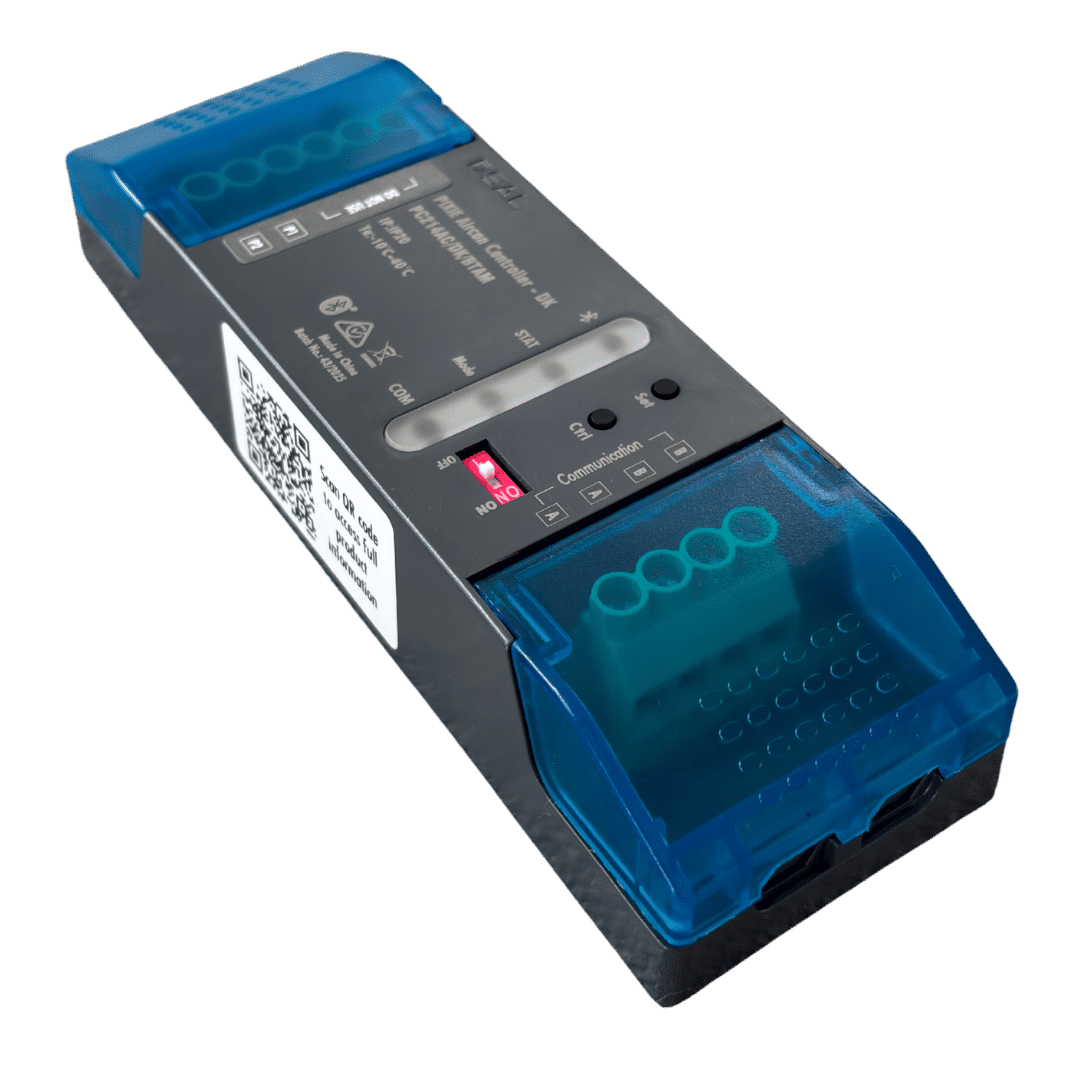
What you need on a DAIKIN™ job #
| AC control | One PIXIE AC Controller per DAIKIN™ indoor unit |
| Connection | P1-P2 on the indoor unit, in parallel with the DAIKIN™ wall panel |
| Controller limit | Max 2 controllers on P1-P2. DAIKIN™ wall panel is Controller 1 (Main), PAC is Controller 2 (Sub) |
| Zoning | PIXIE Smart Zone Controller (PZC248N/R/BTAM) for ducted indoor units with dampers |
| Apps | SAL PIXIE and PIXIE PLUS |
| Gateway | SGW3BTAM, for voice and out-of-home control only |
Ducted deployment #
- One PAC on P1-P2 handles power, mode, temperature and fan speed.
- Standard DAIKIN™ wall panel stays as Controller 1.
- Add a PIXIE Smart Zone Controller for up to 8 zones. It is not wired to the PAC.
- Zones controlled from the app, Touch Panel, schedules and scenes.
VRV deployment #
- One PAC per VRV indoor unit, so each room gets its own PIXIE control.
- One DAIKIN™ wall panel is still required per indoor unit.
- Central controller or BMS stays on F1-F2. PIXIE stays local on P1-P2.
- Group and scene control across the whole system over Bluetooth mesh.
Ducted and VRV on the same site. Both deployment types can run on the same PIXIE Bluetooth mesh, in the same PIXIE PLUS app and through the same Gateway, with no conflict.
Tell the AC contractor: do #
- Install, test and commission the DAIKIN™ system as normal.
- Install the standard DAIKIN™ wall panel.
- Supply 24V AC dampers and a 24V AC supply for the Smart Zone Controller, if PIXIE is zoning.
Tell the AC contractor: don't #
- Install the DAIKIN™ zone control wall panel when PIXIE is zoning.
- Add a DAIKIN™ zone control module when PIXIE is zoning.
- Put more than two controllers on P1-P2.
- Use 240V dampers.
Mitsubishi Electric. Split, ducted and ceiling, via Wi-Fi. #
Mitsubishi Electric is the one brand where Wi-Fi is part of the picture. AC control runs through the Mitsubishi Electric Wi-Fi Controller on each indoor unit, which PIXIE PLUS reaches through the PIXIE Gateway on the site network. Zoning still runs on PIXIE Bluetooth mesh through the Smart Zone Controller.

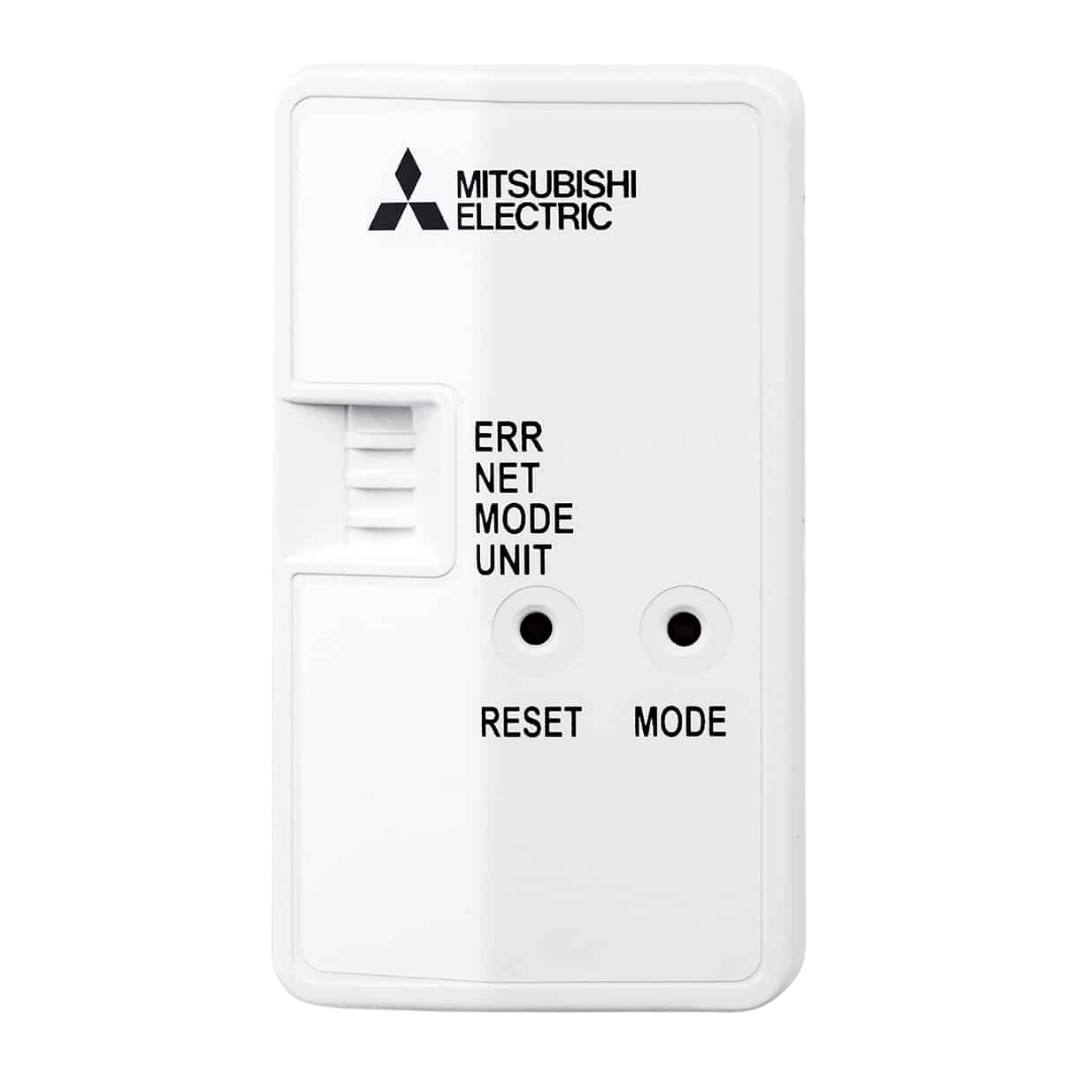
What you need on a Mitsubishi Electric job #
| AC control | Mitsubishi Electric Wi-Fi Controller on each indoor unit to be controlled, supplied and installed by the AC contractor |
| Gateway | PIXIE Gateway SGW3BTAM, always required, on the same IP subnet as the Wi-Fi Controllers |
| Network | Active internet connection on site |
| App | PIXIE PLUS only, plus the Mitsubishi Electric Wi-Fi Control App for initial setup |
| System limit | Max 10-12 Wi-Fi modules in a single system |
| Zoning | PIXIE Smart Zone Controller (PZC248N/R/BTAM). The Wi-Fi Controller does not provide zoning. |
Commission in the ME app first, then scan in PIXIE PLUS. #
The AC contractor installs and commissions the Mitsubishi Electric system and fits a Wi-Fi Controller to each indoor unit.
Set up each Wi-Fi Controller in the Mitsubishi Electric Wi-Fi Control App and connect it to the site network.
In the Mitsubishi Electric app, open Edit Unit and enable ECHONETLITE. PIXIE cannot see the unit without it.
Install the PIXIE Gateway on the same IP subnet, then scan for AC controllers in PIXIE PLUS.
Tell the AC contractor: do #
- Install, test and commission the Mitsubishi Electric system as normal.
- Supply and install a Wi-Fi Controller on each indoor unit, splits and ceiling mount included.
- Supply 24V AC dampers and a 24V AC supply for the Smart Zone Controller, if PIXIE is zoning.
Tell the AC contractor: don't #
- Install the zone control wall panel. Use the standard remote wall panel only when PIXIE is zoning.
- Add a Mitsubishi Electric zone control module when PIXIE is zoning.
- Use 240V dampers.
Mitsubishi Heavy Industries. Ducted and VRF, via RS485. #
The PIXIE RS485 Bridge connects to an Intesys module, which connects to the X-Y terminals on the MHI indoor unit, in parallel with the MHI wall panel. Like DAIKIN™, it runs on PIXIE Bluetooth mesh with no Wi-Fi needed for app control on site.

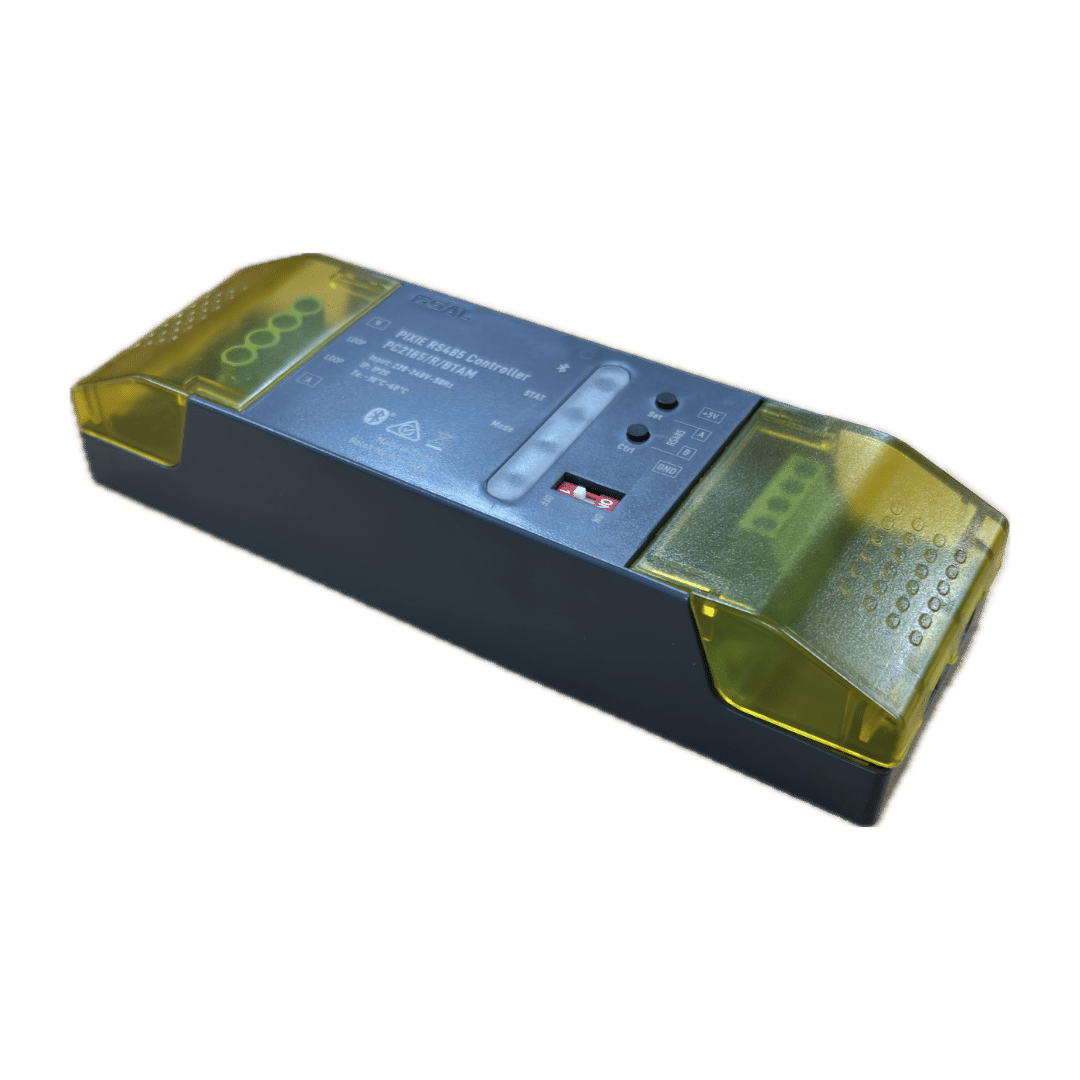
What you need on an MHI job #
| AC control | One PIXIE RS485 Bridge + Intesys kit per MHI indoor unit. Both parts are required and both come in the kit. |
| Wiring | Bridge needs active and neutral. Bridge A+B to Intesys A+B. Intesys X+Y to indoor unit X+Y (not polarity sensitive, figure 8 cable is suitable). |
| Control | On/off, mode, temperature setpoint and fan speed |
| Wall panel | Ducted: a single standard MHI wall panel. VRF: one panel per indoor unit. |
| Apps | SAL PIXIE and PIXIE PLUS |
| Gateway | SGW3BTAM, for voice and out-of-home control only |
Caution. Do not connect the Smart Zone Controller to the X-Y terminals on the MHI indoor unit. It runs from its own 24V AC supply only, and it is not wired to the RS485 Bridge.
Tell the AC contractor: do #
- Install, test and commission the MHI system as normal.
- Connect the Intesys module to X-Y on the indoor unit, in parallel with the standard MHI wall panel.
- Supply 24V AC dampers and a 24V AC supply for the Smart Zone Controller, if PIXIE is zoning.
Tell the AC contractor: don't #
- Install more than one MHI wall panel per indoor unit.
- Install the MHI zone control wall panel or add the MHI zone control module when PIXIE is zoning.
- Use 240V dampers.
- Connect the RS485 Bridge and the Smart Zone Controller to each other.
PIXIE Smart Zone Controller. The same on every brand. #
Zoning works the same way whether the indoor unit is DAIKIN™, Mitsubishi Electric or MHI. The Smart Zone Controller sits with the dampers in the ceiling space and joins the PIXIE Bluetooth mesh. It is never wired to the AC control device or to the indoor unit terminals.
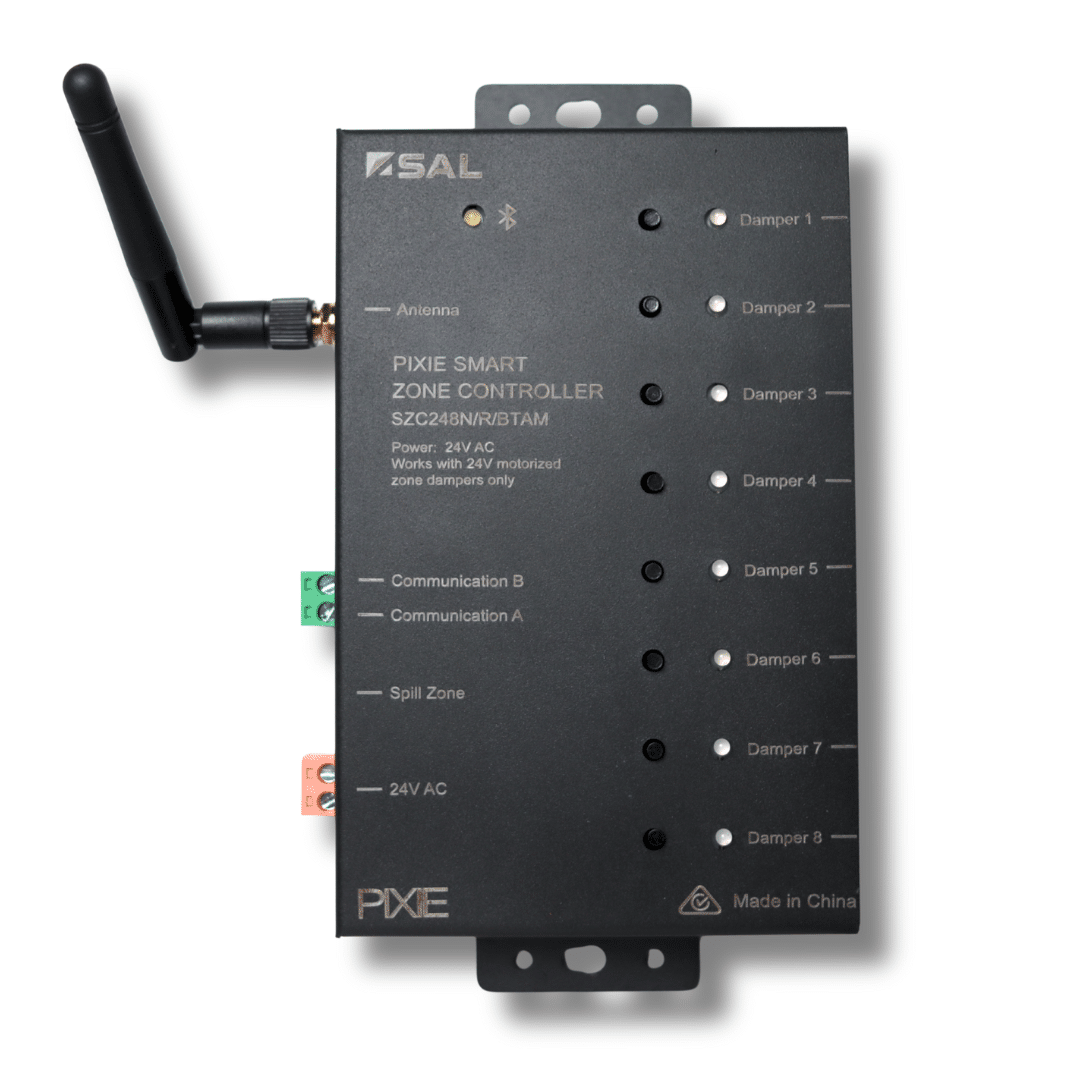
PIXIE Smart Zone Controller #
| Damper inputs | 8 x RJ11 |
| Dampers | 24V AC only, any brand. Never 240V. |
| Power | Its own 24V AC supply |
| Wiring to AC device | None. Communicates over PIXIE Bluetooth mesh. |
| Spill zone | DIP switch, set to suit the system design |
| Testing | On-board test button per damper, for checking in the ceiling space before app setup |
| More than 8 zones | Add another Smart Zone Controller, wired only to its own dampers |
Room-by-room airflow that fits the way they live. #
- Open and close zones from the app, a PIXIE Touch Panel or a Multifunction Controller by the door
- Zones in schedules and scenes alongside PIXIE lighting
- Voice and out-of-home zone control with the PIXIE Gateway
- Control points added or moved later with no new cabling
Full integration needs the standard panel. When PIXIE handles zoning, the manufacturer's standard wall panel is used for local AC control. The manufacturer's advanced zoning panel and zone control module are left out. Settle this with the AC contractor at the design stage, before equipment is ordered.
Common questions on CLIMATIQ jobs. #
Does PIXIE work with DAIKIN™ split systems?▼
No. The PIXIE AC Controller for DAIKIN™ is for ducted and VRV indoor units with P1-P2 terminals. It is also not compatible with DAIKIN™ Airbase™ or AirHub™ systems. For split systems, Mitsubishi Electric is the supported brand.
Can the client keep the manufacturer's wall panel?▼
Yes. PIXIE connects in parallel with the standard wall panel on all three brands, so it stays on the wall and keeps working. The one exception is the manufacturer's zoning panel, which should not be installed when PIXIE is doing the zoning.
What happens if the manufacturer's zoning panel has already been ordered?▼
You will not get full PIXIE integration of zoning with that panel in place. If the equipment has not been installed, ask the AC contractor to swap to the standard wall panel and 24V AC dampers. If it has, call PIXIE technical support on 1800 256 843 before going further.
Do I need a PIXIE Gateway?▼
For Mitsubishi Electric, yes, always. For DAIKIN™ and MHI, app control on site runs on PIXIE Bluetooth mesh without a Gateway. On any brand, voice control and out-of-home control need the PIXIE Gateway (SGW3BTAM) and the PIXIE PLUS app.
Which app should the client use?▼
DAIKIN™ and MHI work with both SAL PIXIE and PIXIE PLUS. Mitsubishi Electric works with PIXIE PLUS only. If the client wants voice or out-of-home control, use PIXIE PLUS with a Gateway.
Does the Smart Zone Controller need to be wired to the AC controller?▼
No, on any brand. It connects to its dampers and its own 24V AC supply, then talks to PIXIE over Bluetooth mesh. Never connect it to P1-P2, X-Y or any other indoor unit terminal.
Can I use the Smart Zone Controller with other AC brands?▼
Yes. It works with any 24V AC damper, whatever the AC brand. Without a CLIMATIQ AC control device you get PIXIE zone control, but not PIXIE control of the AC unit itself.
What about Mitsubishi Electric VRF (City Multi)?▼
PIXIE support for Mitsubishi Electric covers split, ducted and ceiling mount indoor units using the Wi-Fi Controller. For any other Mitsubishi Electric system, talk to PIXIE technical support before specifying.
Where do I buy CLIMATIQ devices?▼
Through your electrical wholesaler. The Mitsubishi Electric Wi-Fi Controller is a Mitsubishi Electric product and is normally supplied by the AC contractor. Your SAL National state representative can help with availability.
Key part numbers at a glance. #
| Part number | Device | Used with |
|---|---|---|
| PC214AC/DK/BTAM | PIXIE AC Controller for DAIKIN™ | DAIKIN™ ducted and VRV |
| PC2185/R/BTAM/KIT/MHI1 | PIXIE RS485 Bridge + Intesys kit | MHI ducted and VRF |
| MAC-588IF-E | Mitsubishi Electric Wi-Fi Controller (Mitsubishi Electric product) | Mitsubishi Electric split, ducted and ceiling |
| PZC248N/R/BTAM | PIXIE Smart Zone Controller | All three brands, any 24V AC damper |
| SGW3BTAM | PIXIE Gateway | Required for Mitsubishi Electric. Voice and out-of-home control on all brands. |
Need a hand on site? Remote tech support is available Monday to Friday, 10am to 5pm on 1800 256 843. The PIXIE Facebook Technical Support Group is also an active resource for real-world installation questions.
One-pagers, datasheets and the rest of the knowledge base. #
Everything you need to specify, install and support a CLIMATIQ job on any of the three brands.